How to view your Grades
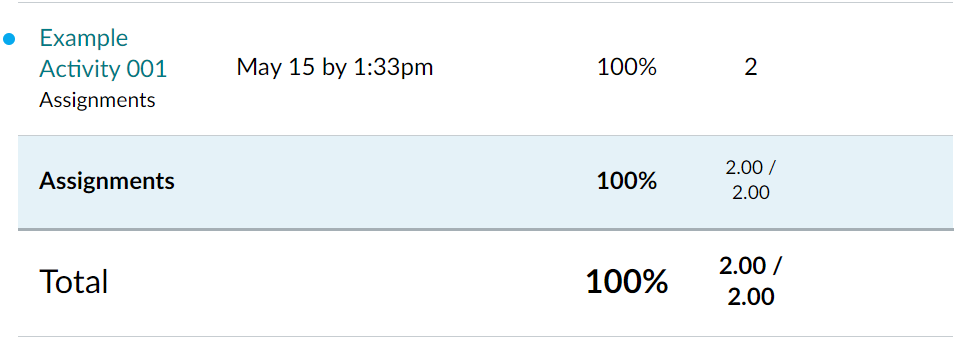
Depending on how your instructor set up your Vista Higher Learning material gradebook, you will either see your scores by each lesson, week, category, or a single column with an aggregate score. To view your Grades in Canvas:- Click on the Grades option in your Canvas Course Menu. Vista Higher Learning materials will automatically synchronize with your Course gradebook, so you should be able to view your up-to-date grades. Here is an example of what individual activities would look like in the Canvas Gradebook from a student's perspective:
2. You can also view your grades from within Vista Higher learning. Click on the VHL Home page in your modules or select Launch VHLCentral in the left-hand side navigation menu. Navigate to your course Dashboard.
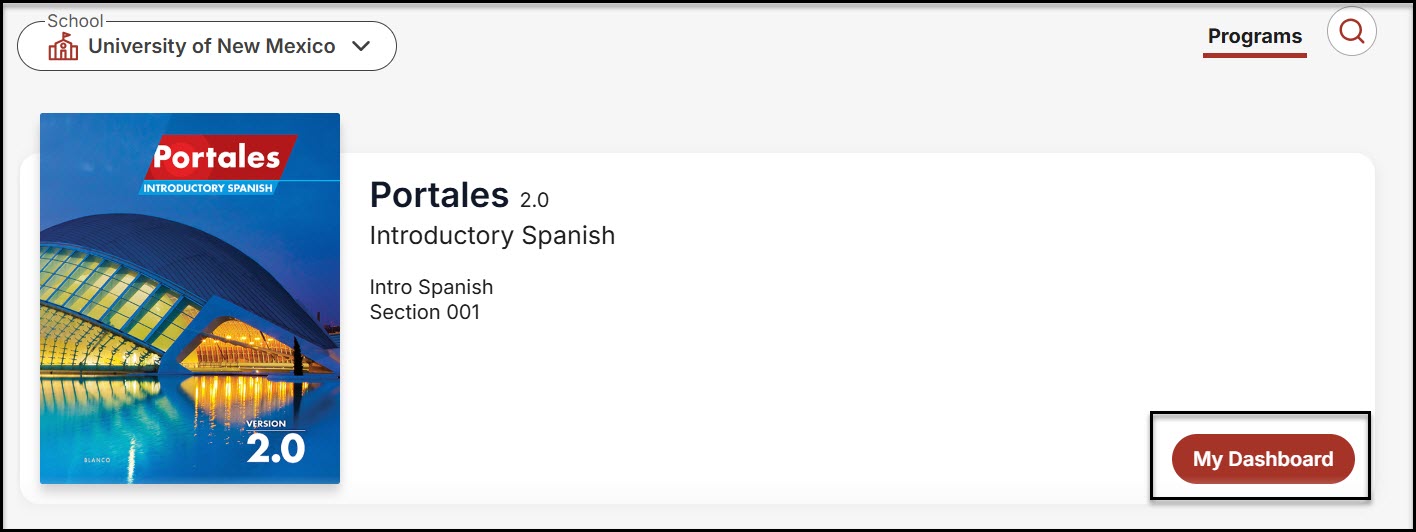
Then select "Grades" in the top right corner.

3. If you are unable to see your grades in Canvas, we recommend reaching out to your instructor to ensure that they have set up their Vista Higher Learning material correctly. You can also reach out to VHL Support or Canvas Support for further assistance.