How to add Signing Naturally to your Canvas Course
Follow the steps below to add a Signing Naturally homework assignment to your Canvas course.
INSTRUCTORS: Before you begin:
- If you are using UNM Course Materials Access, you must have made prior arrangements with the UNM Main Campus Bookstore to deliver access codes to students. Add the My Shelf link to your course menu so students can acquire an access code or opt-out.
Request instructor access (optional)
If you would like to view the Signing Naturally materials yourself, contact DawnSign Support to request an instructor access code. Once you receive your code, open a Signing Naturally assignment in your Canvas course and enter the code when prompted.
Add the assignment
- Open your Canvas course and click Assignments in the Course Navigation Menu.
- Click + Assignment.
- Enter an Assignment Name, such as Signing Naturally - Homework 1.1.
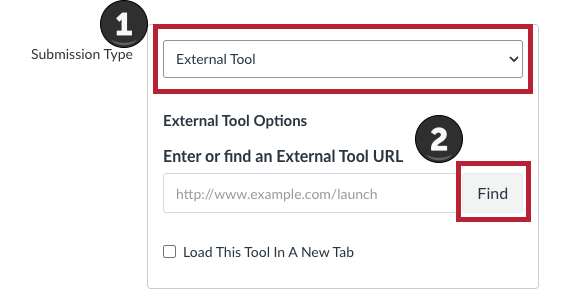
- Under Submission Type, select External Tool, then click Find.
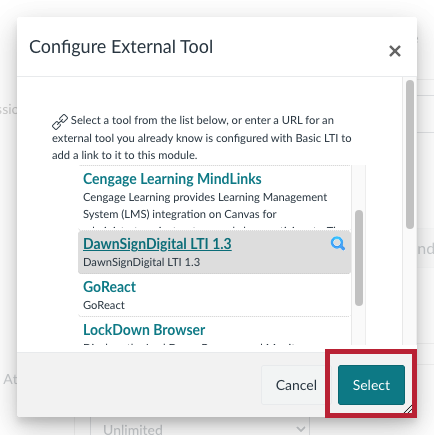
- Locate and click DawnSignDigital LTI 1.3 then click Select.

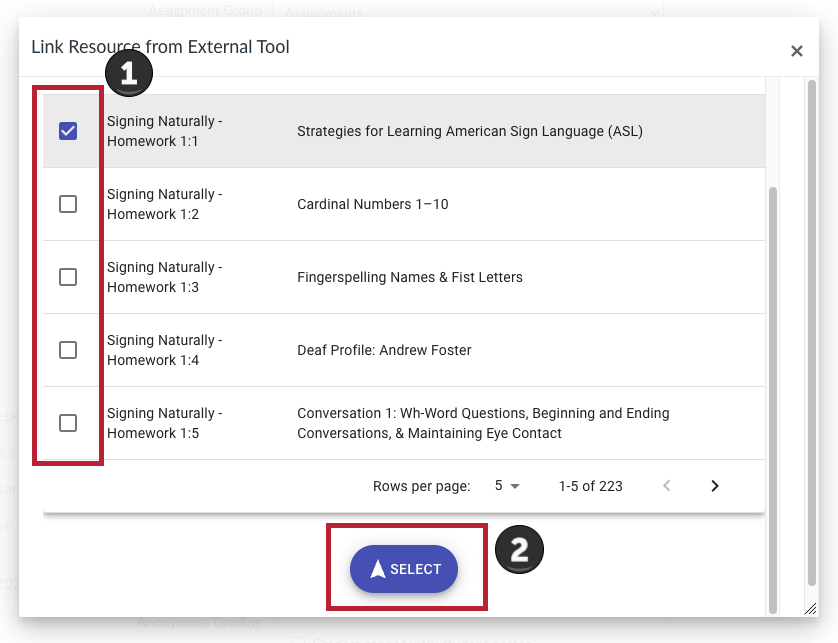
- Locate the homework you want to add and select its checkbox. You can use the search field to find a specific homework. Scroll down and click the purple Select button.
- Then click Select again in the Canvas external tool window to confirm your selection.
- Check Load This Tool In A New Tab.
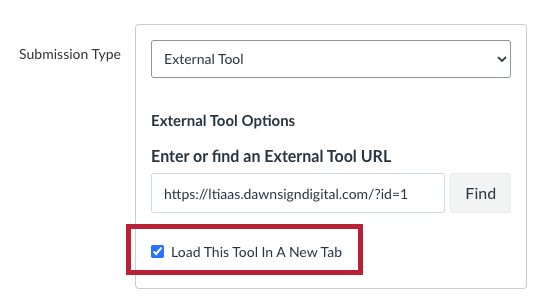
Required setting: Signing Naturally homework must open in a new tab for its accessibility features to function fully. Keep Load This Tool In A New Tab selected for every Signing Naturally assignment.
Configure grading
- Set Points, Display Grade As, and Do not count this assignment towards the final grade according to the table below.
| Homework type | Points | Display Grade As | Do not count this assignment towards the final grade |
|---|---|---|---|
| Complete/Incomplete, excluded from the final grade | 1 | Complete/Incomplete | Checked |
| Complete/Incomplete, included in the final grade | 100 | Complete/Incomplete | Unchecked |
| Graded | 100 | Percentage | Unchecked |
Complete/Incomplete homework that counts toward the final grade reports 100 points when complete or 0 points when incomplete. Graded homework reports a percentage.
Save and publish
- Configure the remaining assignment settings, including the assignment group, due date, and availability dates, as needed for your course.
- Click Save to keep the assignment unpublished, or Save & Publish to publish it immediately. If you choose Save, publish the assignment from the Assignments page when you are ready for students to access it.
- Open the saved assignment and use its load button to open the homework in a new browser tab. Confirm that the intended homework appears.
- Repeat these steps for each Signing Naturally homework assignment you want to add.
- Add and publish the assignment to a Module if needed.
How grades appear in Canvas
- Grades sync hourly. A completed homework grade may take up to one hour to appear in the Canvas Gradebook.
- Students must complete every section. For homework with multiple sections, students must finish all sections and click Continue in each section before the final grade syncs.
- Continue submits the activity grade. On the Activity Results page, students can select Retry to try again before submitting or Continue to submit their current score. Retrying can raise or lower the score; the highest attempt is not automatically retained. After students click Continue to submit, later attempts do not send a replacement grade to Canvas.