Launching and Linking eText
- Prior to the semester, instructors in the Course Materials Access program must make arrangements through the UNM Bookstore in order for Pearson eText to work.
- For campuses not participating, please see the non-VitalSource instructions.
My Shelf (VitalSource) instructions
1. Enable the Access Pearson course link. Visit How to Add the Access Pearson Link for more details.
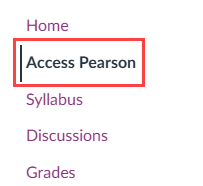
2. Click on the Access Pearson link in the Course Menu.
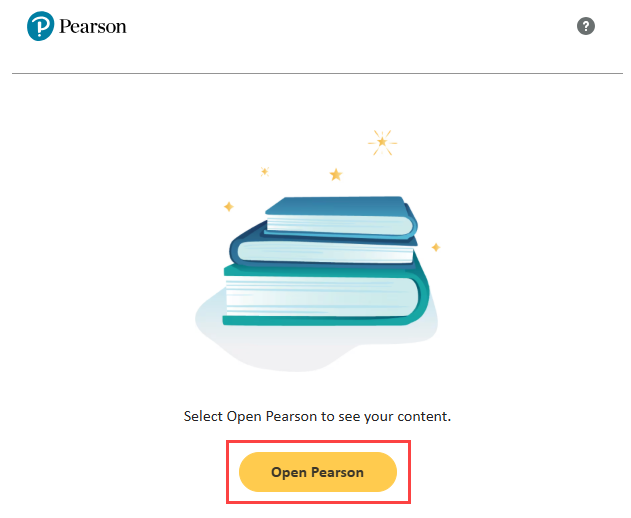
3. Click the Open Pearson button.
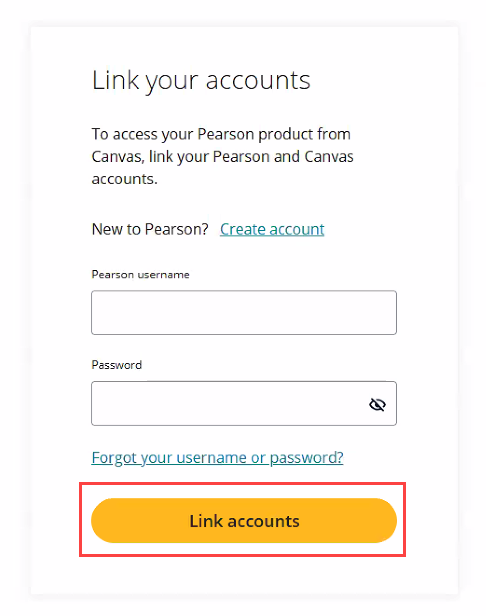
4. If prompted, link your existing Pearson account, then click “Link Account”. Or click "Create account" if you have never used Pearson before.
Non-VitalSource instructions
1. Enable the Access Pearson course link. Visit How to Add the Access Pearson Link for more details.
2. Click on the Access Pearson link in the Course Menu.
3. Click the Open Pearson button.
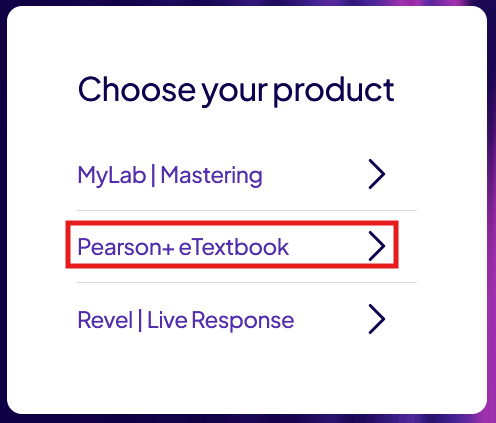
4. To enable Pearson eText products in your course, select "Pearson+ eTextbook". Note: Your selection is permanent and cannot be undone.
5. If prompted, login using your Pearson username and password and then click "Link accounts".